Showing posts with label Blogger Widgets. Show all posts

Simple Notification Widget for Blogger

No comments:
Have you been creating posts to notify all unimportant things about your blog ?

Yes, I have seen many people doing so. Creating single paragraph posts, making the blog look unimpressive.

Notification bar is one of the widely used technique to overcome this situation. The major advantage of notification bar is the space saved. Moreover, being placed above the header, it grabs everyone's attention.

Simple Yet Stylish Share Buttons for Blogger

8 comments:
share buttons
Recently one of our twitter follower asked us to create him a custom social sharing widget with some icons. The icons were of the WordPress plugin Simple Share Buttons.

While creating the widget for him, we decided to make the widget easily customizable, so that it will be easy for everyone to customize it with their own icons and effects.

How to Add Facebook Like Box to Blogger

1 comment:
facebook like box
Want to convert your visitors into Facebook fans ?

Even though Facebook like box pop-up and Facebook content locker can bring you some quick Facebook likes, adding a Facebook like box to the sidebar of your blogger blog is the most decent way to get some real Facebook likes without annoying your visitors.

The Facebook like box displays the following:
  1. Number of people who like your Facebook page.
  2. A one click like button.
  3. Some of your Facebook fans(optional).
  4. Recent updates on your Facebook page(optional).
However if you want to add the Facebook like box to your blogger blog, follow the below steps.

Adding Facebook Like Box to Blogger


Step 1: Go to Facebook social plugins: like box page, fill the text areas with corresponding information. You can see the live preview at the bottom, it updates as you change a parameter.
Step 2: Click the Get Code button.
Step 3: On the pop-up, there will be four tabs. Click on the IFRAME tab.

facebook like box iframe
Step 4: Copy the code.
Step 5: Go to your blogger dashboard, layout >  Add a Gadget. Select HTML/JavaScript gadget.
Step 6: Paste the code on the text area and click save.
Step 7: Drag the widget to wherever you want the like box to appear.

We hope the tutorial helped you in adding Facebook like box to your blogger blog. If you have any queries regarding this, please leave a comment and we  are always ready to help. If you wish to stay connected with us, you can catch us on Facebook at BloggerGarage

    Tabbed Author Box Widget For Blogger

    2 comments:
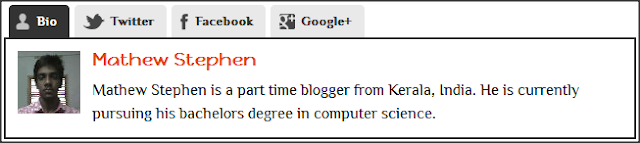
    Author Box Widget For Blogger
    Author box widgets are usually used in multi-author blogs to let the visitors know about the author. In single author blogs, an about the author widget is placed in the sidebar for the same...

    However, things seems changed now, using an author box widget has become a matter of style. They are now being used in both muti-author and single-author blogs.

    The tabbed author box widget that we are giving you away is a clone of the fanciest author box widget for WordPress. If you're a WP user then you can buy it right from CodeCanyon for $10. Even though we said its a clone, adding and managing the widget is not that easy as this is not for WordPress. So, you have to do all things manually...

    Adding the Tabbed Author Box Widget Below Every Posts

    Step 1: Back up your blogger template [IMPORTANT]

    Step 2: Go to your blogger dashboard > Template Edit HTML:

    Step 3: Using Ctrl+F, search for </head> and copy-paste the below code above it.

    <script type='text/javascript'>
    jQuery(document).ready(function(a){a(&quot;.ts-fab-tabs &gt; div&quot;).hide();a(&quot;.ts-fab-tabs &gt; div:first-child&quot;).show();a(&quot;.ts-fab-list li:first-child&quot;).addClass(&quot;active&quot;);a(&quot;.ts-fab-list li a&quot;).click(function(){a(this).closest(&quot;.ts-fab-wrapper&quot;).find(&quot;li&quot;).removeClass(&quot;active&quot;);a(this).parent().addClass(&quot;active&quot;);var b=a(this).attr(&quot;href&quot;);if(b.indexOf(&quot;#&quot;)!=-1){currentTabExp=b.split(&quot;#&quot;);b=&quot;#&quot;+currentTabExp[1]}a(this).closest(&quot;.ts-fab-wrapper&quot;).find(&quot;.ts-fab-tabs &gt; div&quot;).hide();a(b).show();return false})});
    </script>

    Step 4: Now, search for  ]]></b:skin> and paste the below code above it.

    .ts-fab-wrapper{margin:0 0 2em;clear:both}
    .ts-fab-wrapper a{text-decoration:none!important}
    .ts-fab-wrapper img{border:none!important}
    .ts-fab-list{overflow:hidden;padding:0 0 0 5px!important;margin:0!important}
    .ts-fab-list li{display:block;float:left;list-style:none;margin:0 5px 0 0!important}
    .ts-fab-list li a{display:block;line-height:16px;height:16px;padding:8px 12px;background-color:#e9e9e9;border:1px solid #e9e9e9;border-bottom:none!important;text-decoration:none;font-size:13px;color:#333;font-weight:bold;outline:0;text-shadow:none!important;border-radius:5px 5px 0 0;-webkit-border-radius:5px 5px 0 0;-moz-border-radius:5px 5px 0 0}
    .ts-fab-list li a:hover{color:#333}.ts-fab-list li.active a{background-color:#333;color:#fff;border-color:#333}
    .ts-fab-list li a{background-image:url(&#39;https://blogger.googleusercontent.com/img/b/R29vZ2xl/AVvXsEh8_qovkkhncixq6l_pL7L58EnLUoEBeHjPrIbaLK9yTADTYm9Bkn2foAb6HTjuTZgRtSgtmd57mbjh9gljUE0cgj4aDnPCBRrM0RZx7QBayA6iGbMtLup53-9-TKPfhYBikUMmwbiOYr6S/s320/fab_tab_icons.png&#39;)}
    .ts-fab-list li.ts-fab-bio-link a{background-position:8px 8px;background-repeat:no-repeat;padding-left:27px}
    .ts-fab-list li.ts-fab-bio-link.active a{background-position:-280px 8px;background-repeat:no-repeat;padding-left:27px}
    .ts-fab-list li.ts-fab-twitter-link a{background-position:8px -42px;background-repeat:no-repeat;padding-left:35px}
    .ts-fab-list li.ts-fab-twitter-link.active a{background-position:-270px -42px;background-repeat:no-repeat;padding-left:35px}
    .ts-fab-list li.ts-fab-facebook-link a{background-position:8px -92px;background-repeat:no-repeat;padding-left:23px}
    .ts-fab-list li.ts-fab-facebook-link.active a{background-position:-284px -92px;background-repeat:no-repeat;padding-left:23px}
    .ts-fab-list li.ts-fab-googleplus-link a{background-position:8px -142px;background-repeat:no-repeat;padding-left:30px}
    .ts-fab-list li.ts-fab-googleplus-link.active a{background-position:-276px -142px;background-repeat:no-repeat;padding-left:30px}
    .ts-fab-list li.ts-fab-custom-link a,.ts-fab-list li.ts-fab-additional-link a{background-image:none!important}
    .ts-fab-widget .ts-fab-list li a,.ts-fab-icons-only .ts-fab-list li a{text-indent:-9999em;padding:8px 12px!important}.ts-fab-widget .ts-fab-list li.ts-fab-bio-link a,.ts-fab-icons-only .ts-fab-list li.ts-fab-bio-link a{width:4px}
    .ts-fab-widget .ts-fab-list li.ts-fab-twitter-link a,.ts-fab-icons-only .ts-fab-list li.ts-fab-twitter-link a{width:12px}.ts-fab-widget .ts-fab-list li.ts-fab-googleplus-link a,.ts-fab-icons-only .ts-fab-list li.ts-fab-googleplus-link a{width:8px}
    .ts-fab-widget .ts-fab-list li.ts-fab-facebook-link a,.ts-fab-icons-only .ts-fab-list li.ts-fab-facebook-link a{width:0}
    .ts-fab-widget .ts-fab-list li.ts-fab-custom-link a,.ts-fab-icons-only .ts-fab-list li.ts-fab-custom-link a{text-indent:0!important}
    .ts-fab-tab{display:none;border:2px solid #333;padding:12px;background:#fff;min-height:64px}.ts-fab-tab:after{content:&#39;&#39;;display:table;clear:both}
    .ts-fab-tab:first-child{display:block}
    .ts-fab-widget .ts-fab-tab{padding:8px}
    .ts-fab-avatar{display:block;float:left;width:64px;height:64px}
    .ts-fab-no-float .ts-fab-avatar{float:none;margin:0 0 12px}
    .ts-fab-avatar img{display:block;border:none!important}
    .ts-fab-text{margin-left:76px;line-height:1.5}
    .ts-fab-no-float .ts-fab-text{margin-left:0}
    .ts-fab-header{margin-bottom:10px}
    .ts-fab-text h4{clear:none;font-size:18px;line-height:1!important;font-weight:bold;margin:0 0 .2em!important;line-height:1;padding:0}
    .ts-fab-description{font-size:12px}
    .ts-fab-follow{margin-top:10px}
    .ts-fab-wrapper iframe{margin-bottom:0!important}
    body.rtl .ts-fab-avatar{float:right}
    body.rtl .ts-fab-text{margin-left:0;margin-right:76px}body.rtl .ts-fab-list{padding:0 5px 0 0!important}
    body.rtl .ts-fab-list li{float:right;margin:0 0 0 5px!important}
    .fb_iframe_widget&gt;span,.fb_iframe_widget&gt;span iframe{min-height:64px!important}

    Step 5: Next search for <data:post.body/> and post the following code below it.

     <b:if cond='data:blog.pageType == &quot;item&quot;'>
    <style>
    .ts-fab-avatar {  background: url(https://blogger.googleusercontent.com/img/b/R29vZ2xl/AVvXsEhVTBIOeMo-cJDa2Aivg9fz6-0c8VJOd-Mh0W0JmmnBj8oWtbQD5PNf5t8DMxsBiXHKgw2fSInBQ1IZAXK4OhuJG4i_nnS29dkMCffdzYvK7UXM_P21aYlQoLs0QRqrGkMHRmkAnm2GXAjX/s1600/Mathew+Stephen.jpg) no-repeat; height=&#39;64&#39; width=&#39;64&#39; }
    </style>
    <div class='ts-fab-wrapper ts-fab-icons-text' id='ts-fab-below'>
    <ul class='ts-fab-list'>
      <li class='ts-fab-bio-link'><a href='#ts-fab-bio-below'>Bio</a></li>
      <li class='ts-fab-twitter-link'><a href='#ts-fab-twitter-below'>Twitter</a></li>
      <li class='ts-fab-facebook-link'><a href='#ts-fab-facebook-below'>Facebook</a></li>
      <li class='ts-fab-googleplus-link'><a href='#ts-fab-googleplus-below'>Google+</a></li>
    </ul>
    <div class='ts-fab-tabs'>
    <div class='ts-fab-tab' id='ts-fab-bio-below'>
    <div class='ts-fab-avatar'>
    </div>
    <div class='ts-fab-text'>
    <div class='ts-fab-header'>
    <h4>
    <a href='http://www.bloggergarage.com/'>AUTHOR NAME</a></h4>
    <div class='ts-fab-description'>
    </div>
    </div>
    <!-- /.ts-fab-header -->
    <div class='ts-fab-content'>
    AUTHOR BIO</div>
    </div>
    </div>
    <div class='ts-fab-tab' id='ts-fab-twitter-below'>
    <div class='ts-fab-avatar'>
    </div>
    <div class='ts-fab-text'>
    <div class='ts-fab-header'>
    <h4>
    <a href='http://twitter.com/bloggergarage'>AUTHOR NAME</a></h4>
    </div>
    <!-- /.ts-fab-header -->
    <div class='ts-fab-content'>
    <!-- Couldn't fetch latest tweet --></div>
    <div class='ts-fab-follow'>
    <a class='twitter-follow-button' data-lang='en_US' data-show-count='true' href='https://twitter.com/bloggergarage'>Follow @bloggergarage</a></div>
    <script>!function(d,s,id){var js,fjs=d.getElementsByTagName(s)[0];if(!d.getElementById(id)){js=d.createElement(s);js.id=id;js.src=&quot;//platform.twitter.com/widgets.js&quot;;fjs.parentNode.insertBefore(js,fjs);}}(document,&quot;script&quot;,&quot;twitter-wjs&quot;);</script>
       </div>
    </div>
    <div class='ts-fab-tab' id='ts-fab-facebook-below'>
    <div class='ts-fab-avatar'>
    </div>
    <div class='ts-fab-text'>
    <div id='fb-root'>
    </div>
    <script>(function(d, s, id) {
         var js, fjs = d.getElementsByTagName(s)[0];
         if (d.getElementById(id)) return;
         js = d.createElement(s); js.id = id;
         js.src = &quot;//connect.facebook.net/en_US/all.js#xfbml=1&quot;;
         fjs.parentNode.insertBefore(js, fjs);
         }(document, &#39;script&#39;, &#39;facebook-jssdk&#39;));</script>
       
     <div class='ts-fab-header'>
    <h4>
    <a href='http://www.facebook.com/mattstephenktm'>AUTHOR NAME</a></h4>
    </div>
    <div class='fb-subscribe' data-href='http://www.facebook.com/mattstephenktm' data-layout='standard' data-show-faces='false' data-width='320'>
    </div>
    </div>
    </div>
    <div class='ts-fab-tab' id='ts-fab-googleplus-below'>
    <div class='ts-fab-avatar'>
    </div>
    <div class='ts-fab-text'>
    <div class='ts-fab-header'>
    <h4>
    <a href='https://plus.google.com/107815365251270865200?rel=author'>+AUTHOR NAME</a></h4>
    </div>
    <!-- /.ts-fab-header -->
        <g:plus height='69' href='https://plus.google.com/107815365251270865200' width='320'/>
       </div>
    </div>
    </div>
    </div>
    </b:if>

    Step 6: Now click the orange save button.

    Coustomization:

    • Replace  https://blogger.googleusercontent.com/img/b/R29vZ2xl/AVvXsEhVTBIOeMo-cJDa2Aivg9fz6-0c8VJOd-Mh0W0JmmnBj8oWtbQD5PNf5t8DMxsBiXHKgw2fSInBQ1IZAXK4OhuJG4i_nnS29dkMCffdzYvK7UXM_P21aYlQoLs0QRqrGkMHRmkAnm2GXAjX/s1600/Mathew+Stephen.jpg with URL of your own image of size 64*64.
    • Replace http://twitter.com/bloggergarage with your own twitter profile link, http://www.facebook.com/mattstephenktm with your Facebook profile link and https://plus.google.com/107815365251270865200 with your Google+ profile link.
    • Replace AUTHOR NAME with your name and AUTHOR BIO with your short bio.

    That's it! Even though installing this widget in your blogger blog is a mess, you will be happier at the end seeing the widget in your blog. If anything goes wrong in the middle, restore the blogger template and try it again. If you still face any difficulty installing the widget on your blog, drop a comment below and we will be happy to help you out.

    Adding a Cool Email Subscription Widget Below Every Posts in Blogger

    1 comment:
    Email Subscription Widget
    After a long time, here we are back with a cool email subscription widget, which can be placed right below all your posts. As you all know, placing a email subscription widget below each and every posts of your blog can certainly increase your email subscribers. Moreover it gives your blog a classic look.

    If you browse blogs regularly, then surely you may have seen a similar widget in WordPress blogs. Yes, this widget is inspired from a WordPress plugin. Whatever, as far as we know, no one has released a similar widget for blogger blogs. Anyway, the widget looks more attractive than our older version and has some social profile buttons below the form, which enables the users to follow you via social networking sites too...


    Adding the Email Subscription Widget Below Every Posts


    1) Go to your blogger dashboard > Template > Edit HTML

    2) Using Ctrl+F, search for ]]></b:skin> and paste the below code above it.
    #newsletter { background:#202020; padding:20px; margin-bottom:40px;}
    #newsletter h3 {
        margin:0 0 10px 0;
        color:#fff;
        font-size:28px;
        font-weight:normal;
        font-family: 'BitterRegular';
    }
    #newsletter h4 {
        margin:0 0 10px 0;
        color:#76b320;
        font-size:16px;
        font-weight:normal;
        font-family: 'BitterRegular';
    }

    #newsletter input {
        width:32%;
        height:22px;
        line-height:22px;
        font-size:12px;
        color:#a1a1a1;
        border:none;
        margin:0 5px 20px 0;
        padding:5px 10px;
    }

    #newsletter input.sign {
        color:#fff;
        font-family: 'BitterRegular';
        cursor:pointer;
        height:26px;
        width:70px;
        background:url(https://blogger.googleusercontent.com/img/b/R29vZ2xl/AVvXsEhvTVZIOhbDHAcrCOq9ow1dAfMZMyp_GSSM7rfsO_yV0ie6r_29f8WdgNA7u_wNp9IpfrYRDe2XfbTalb6lHNooKtYXZpZ1pphjP24-H5zOFgLbavE-Lea2bZspnhaX_L18fKFt2w5dDks7/s1600/signup-bg.png) left top no-repeat;
        margin-left:5px;
    }

    #newsletter #lettersocial {
        padding:15px 0 0 0;
        border-top:1px dashed #fff;
    }

    #newsletter #lettersocial a {
        font-size:13px;
        color:#999999;
        height:16px;
        line-height:16px;
        margin-right:15px;
    }

    #newsletter #lettersocial a img { vertical-align:middle;}

    #newsletter #lettersocial a:hover { text-decoration:none;}
    3) Now search for  <data:post.body/> and paste the below code below it:
        <b:if cond='data:blog.pageType == &quot;item&quot;'>
    <div id="newsletter">

                            <h3>Enjoyed this post?</h3>

                            <h4>Be sure to subscribe to get regular updates delivered to your email inbox, for free...</h4>

        <form action="http://feedburner.google.com/fb/a/mailverify" method="post" onsubmit="window.open('http://feedburner.google.com/fb/a/mailverify?uri=tweaks123', 'popupwindow', 'scrollbars=yes,width=550,height=520');return true" target="popupwindow">

        <input class="name" id="newslettername" name="name" onblur="if(this.value=='')this.value=this.defaultValue;" onfocus="if(this.value==this.defaultValue)this.value='';" type="text" value="Name" />

        <input class="email" id="newsletteremail" name="from" onblur="if(this.value=='')this.value=this.defaultValue;" onfocus="if(this.value==this.defaultValue)this.value='';" id="newsletteremail" type="text" value="Email" />

        <input name="uri" type="hidden" value="tweaks123" /><input name="loc" type="hidden" value="en_US" /> <input class="submit sign" type="submit" value="Submit" /></form>

          <div id="lettersocial">

                                <a href="http://feeds.feedburner.com/tweaks123" ><img src="https://blogger.googleusercontent.com/img/b/R29vZ2xl/AVvXsEjNzdkpdAIrXkI7fno110J5MhKXv-076qsaf0RTon90pfRZ2tSJZYU0jYldqTrI_Y4nfl6RMCDMI6P9jvJRzsXypEqE8cQ93IZ0A1jL1BvTFYd0ZKljuJnlX6ddfDCBZUdDW5IwUKFQWRWS/s1600/icon-rss.png" alt="" /> Subscribe</a>

                                                        <a class="twitter popup social-icons" href="https://twitter.com/#!/bloggergarage"><img src="https://blogger.googleusercontent.com/img/b/R29vZ2xl/AVvXsEjve72pTAUYjedPAR2V_4lcnXHLv0fztI7SKnX9am-oCT3ST4nkbQsOvB1EOEY9-yCT1SlWnMyYTv6x5woH5V_avh3d-z8x1mxolPTElIFPYrln4EDSwScBhn3WCTHtsLt-qS6JHw16gg17/s1600/icon-twitter.png" alt="" /> Follow</a>

                                <a href="http://facebook.com/bloggergarage"><img src="https://blogger.googleusercontent.com/img/b/R29vZ2xl/AVvXsEgRty__itzqmbYveAyzdhm3vHqe2sp95rwAwpjmPsoES2-AfLV4tXMfgkGL_V3V40dWPevDTUz48ZdA-7pdDuEYa6vlua_6gqJote4LqFp-HwFGAxo-KhP4UdgrRf8Dn93eYYFQkPWOlivN/s1600/icon-facebook.jpg" alt="" /> Like</a>

                                <div class="clr"></div>

                            </div>

                        </div> 
    </b:if> 
    4) Click the orange 'Save' button.

    Customization

    • Replace #202020 with a suitable color code to change the background color.
    • Replace tweaks123 with your feedburner Id.
    • Replace the URLs of social networking sites with your own profile links.
    That's all we have for you today. Now just move on to your blog and navigate to any of the posts and you can see the widget right below your post. And at last sorry for being inactive for several days, it was due to my exams and all. That's it, take care for now, will meet you tomorrow with our next post!

    Metro Style Social Subscription Widget For Blogger

    1 comment:
    After the launch Microsoft windows 8 (OS), metro style has became popular in web designing arena. Many WordPress themes, Blogger templates, menu bars, etc has been released based on this metro style. But what this metro style is? Actually metro is a design language from Microsoft, and Windows 8 start screen is designed based on that. Whatever, today what I have here for you is a metro style social subscription widget.

    As its name is, the metro social subscription widget is inspired from the metro styled windows 8 start screen. The widget contains a Facebook, twitter, pinterest, LinkedIn, Google +, RSS and a YouTube button. The button zooms out when the mouse is hovered.

    Screenshot:

    social subscription widget

    Adding Metro Style Social Subscription Widget

    Step 1: Go to your blogger dashboard, Layout >> Add a Gadget.

    Step 2: From the list of gadgets, select HTML/JavaScript gadget and add the below code into it
    <style>
    .metro-social{width:285px} 
    .metro-social li{position:relative;cursor:pointer;padding:0;list-style:none} 
    .metro-social .fb,.tw,.gp,.pi,.in,.yt,.fd{z-index:7;float:left;margin:1px;position:relative;display:block} 
    .metro-social .fb{background:url(https://blogger.googleusercontent.com/img/b/R29vZ2xl/AVvXsEjbJ0q6kIN8S3gRxIU_tMbQunVeJQGGe2d_Mb1hs0cYY3GiazwUJ0tXeK4iOSOSwJXAE9n0Demn_6NXagXxrg2NdwLiXBmXx_5xWWGfsBHkbaAX-AWnrkef1IHQApjnTygThu922kXNBQ9R/s75/facebook.png) no-repeat center center #1f69b3;width:140px;height:141px} 
    .metro-social .tw{background:url(https://blogger.googleusercontent.com/img/b/R29vZ2xl/AVvXsEh2v9xpq_g5vAhrkLpypvlnFLmMZ_vkHp9Ov8_JsVg8JYRIywqr73Xcd4FXrMkZh-FEBHiUky7xtKr3CDuLP6Q8LtynxG1OOVYG8UyPHw_2w-tVq0bJVoNkNMqtn46sVmCU8Fb1dJlPQQ0k/s60/twitter-bird-dark-bgs.png) no-repeat center center #43b3e5;width:68px;height:70px} 
    .metro-social .gp{background:url(https://blogger.googleusercontent.com/img/b/R29vZ2xl/AVvXsEixr7Zv2zWDKfke9c9StobHxh06x5mLLewXtNXegmWFWs0yxZzMxddlX14rBlb3GCCyU6koI2IU8FFV-GSMW0sPnx1AyhSXzv4YPEfdjcYMvBsM7IF9Va03MCyAbGLhCB8X12yl2KxEKBfh/s50/google%252Bplus.png) no-repeat center center #da4a38;width:69px;height:70px} 
    .metro-social .pi{background:url(https://blogger.googleusercontent.com/img/b/R29vZ2xl/AVvXsEh3poTBAnxCdoR_7iqsd5Yimf_CKD3ovpl1SrWJAPv4ppWjkyzVCrMRreQAS_wqC3-VtuX8Nf5vqZiEKzaqu9DcoPa7uRRgpr1rAxYQGnhbp2BO_4PVbOr6dN0a1oM7I9OgNgIEmMGWgF8/s40/pinterest.png) no-repeat center center #d73532;width:68px;height:69px} 
    .metro-social .in{background:url(https://blogger.googleusercontent.com/img/b/R29vZ2xl/AVvXsEj_sJQTbJJBjLTqpuStE5CfTUY7wH3qMl7sXdXVOqEfkwbl3tma9Rd0N3f_9NH3v3yWDIfgwiDt-OwhHc1JUF-TJ0JwIy-pbo8XjcmAEkPWLQBgG5y2L3ciq69nJE_JWl9SNgK-JONorzQ/s40/linkedin.png) no-repeat center center #0097bd;width:69px;height:69px} 
    .metro-social .yt{background:url(https://blogger.googleusercontent.com/img/b/R29vZ2xl/AVvXsEhDOtTVkiPNlGOthWJJ7D33MPHBl4k0A4w66b4DxmX8JnSdjGhN40lknNQV4e40JMLofzGqZCDJOlYkyJeIAjzEZh6dm1RiqcwJ4OhKifbVbvGYvn_zL3dhdGXIMcRDkKsn0xfBai5IIx4/s40/youtube.png) no-repeat center center #e64a41;width:140px;height:69px} 
    .metro-social .fd{background:url(https://blogger.googleusercontent.com/img/b/R29vZ2xl/AVvXsEgKtE8Exthno8xfIZPRfWTpZWpHL7S0S93l8SLKNSkq4ilAjC8tNVJRxw7xR6-dNOA1apI0m1BEeIlJLW3oEo2vSihk9St89WVTbm70lZOg9bmHdnQKg2pu17NVZ_IQN1cgom7_kgQc4iWE/s40/feed.png) no-repeat center center #e9a01c;width:140px;height:69px} 
    .metro-social li:hover .fb{background:url(https://blogger.googleusercontent.com/img/b/R29vZ2xl/AVvXsEjbJ0q6kIN8S3gRxIU_tMbQunVeJQGGe2d_Mb1hs0cYY3GiazwUJ0tXeK4iOSOSwJXAE9n0Demn_6NXagXxrg2NdwLiXBmXx_5xWWGfsBHkbaAX-AWnrkef1IHQApjnTygThu922kXNBQ9R/s200/facebook.png) no-repeat center center #1f69b3} 
    .metro-social li:hover .tw{background:url(https://blogger.googleusercontent.com/img/b/R29vZ2xl/AVvXsEh2v9xpq_g5vAhrkLpypvlnFLmMZ_vkHp9Ov8_JsVg8JYRIywqr73Xcd4FXrMkZh-FEBHiUky7xtKr3CDuLP6Q8LtynxG1OOVYG8UyPHw_2w-tVq0bJVoNkNMqtn46sVmCU8Fb1dJlPQQ0k/s74/twitter-bird-dark-bgs.png) no-repeat center center #43b3e5} 
    .metro-social li:hover .gp{background:url(https://blogger.googleusercontent.com/img/b/R29vZ2xl/AVvXsEixr7Zv2zWDKfke9c9StobHxh06x5mLLewXtNXegmWFWs0yxZzMxddlX14rBlb3GCCyU6koI2IU8FFV-GSMW0sPnx1AyhSXzv4YPEfdjcYMvBsM7IF9Va03MCyAbGLhCB8X12yl2KxEKBfh/s200/google%252Bplus.png) no-repeat center center #da4a38} 
    .metro-social li:hover .pi{background:url(https://blogger.googleusercontent.com/img/b/R29vZ2xl/AVvXsEh3poTBAnxCdoR_7iqsd5Yimf_CKD3ovpl1SrWJAPv4ppWjkyzVCrMRreQAS_wqC3-VtuX8Nf5vqZiEKzaqu9DcoPa7uRRgpr1rAxYQGnhbp2BO_4PVbOr6dN0a1oM7I9OgNgIEmMGWgF8/s45/pinterest.png) no-repeat center center #d73532} 
    .metro-social li:hover .in{background:url(https://blogger.googleusercontent.com/img/b/R29vZ2xl/AVvXsEj_sJQTbJJBjLTqpuStE5CfTUY7wH3qMl7sXdXVOqEfkwbl3tma9Rd0N3f_9NH3v3yWDIfgwiDt-OwhHc1JUF-TJ0JwIy-pbo8XjcmAEkPWLQBgG5y2L3ciq69nJE_JWl9SNgK-JONorzQ/s45/linkedin.png) no-repeat center center #0097bd} 
    .metro-social li:hover .yt{background:url(https://blogger.googleusercontent.com/img/b/R29vZ2xl/AVvXsEhDOtTVkiPNlGOthWJJ7D33MPHBl4k0A4w66b4DxmX8JnSdjGhN40lknNQV4e40JMLofzGqZCDJOlYkyJeIAjzEZh6dm1RiqcwJ4OhKifbVbvGYvn_zL3dhdGXIMcRDkKsn0xfBai5IIx4/s45/youtube.png) no-repeat center center #e64a41} 
    .metro-social li:hover .fd{background:url(https://blogger.googleusercontent.com/img/b/R29vZ2xl/AVvXsEgKtE8Exthno8xfIZPRfWTpZWpHL7S0S93l8SLKNSkq4ilAjC8tNVJRxw7xR6-dNOA1apI0m1BEeIlJLW3oEo2vSihk9St89WVTbm70lZOg9bmHdnQKg2pu17NVZ_IQN1cgom7_kgQc4iWE/s45/feed.png) no-repeat center center #e9a01c} 
    </style>

    <div class="metro-social"> 
    <li><a class="fb" href="http://www.facebook.com/USERNAME"></a></li> 
    <li><a class="tw" href="http://twitter.com/USERNAME"></a></li> 
    <li><a class="gp" href="https://plus.google.com/USERNAME"></a></li> 
    <li><a class="pi" href="http://pinterest.com/USERNAME"></a></li> 
    <li><a class="in" href="https://www.linkedin.com/in/USERNAME"></a></li> 
    <li><a class="yt" href="http://www.youtube.com/USERNAME"></a></li> 
    <li><a class="fd" href="http://feeds.feedburner.com/USERNAME"></a></li> 
    </div>  
    Step 3: Replace USERNAME with your usernames.

    Step 4: Click the orange save button.

    If you have faced any problems while installing the widget on your blog, then please let me know it through the  comment box below. Before you go, make sure to check out our other posts on blogger widgets.

    Customize Popular Posts Widget in Blogger | Style #2

    1 comment:
    If you're a regular reader of our blog then you could have already seen the popular posts widget style #1. Today I am back with the next style, i.e. Style #2. Entirely different from style #1, style #2 is simple as well as have a classic look. The customization is purely a CSS based one and no complex steps are evolved.

    Actually there is nothing big with this customization. A simple hover effect is added as well as the default list marker is replaced with an arrow. Anyway lets start...

    Screen Shot:

    Adding Popular Posts Widget To Your Blogger Blog

    Before we move further, it's important to add the popular posts widget from the list of widgets. You can add the widget as per your wish, i.e. with/without snippet, with/without thumbnail,etc. After you make the selections, click the orange save button.

    Customize Popular Posts Widget in Blogger

    On the blogger dashboard >> Template >> Edit HTML, now using Ctrl+F search for ]]></b:skin> and paste the below code above it.
    .popular-posts ul{padding-left:0px;}
    .popular-posts ul li {list-style-type: none;
    text-align:justify;
    margin:0 0 5px 0px;
    background: url(https://blogger.googleusercontent.com/img/b/R29vZ2xl/AVvXsEgYKDMMDPhW1a4rO1pfnlAjjeTNhUTbVtEoaQLDfKMzhQVaglxgt6X67zPNfl86v_P-J1aWBjbS7A1kIb4CfsvTg48bYFeu5z5wBcXIEpwgN-TVbkTTCRcds3jcAEP3LkVedN7JoW0MWLf_/s1600/cat_bullet.gif) no-repeat scroll 5px 10px;
    padding:5px 5px 5px 20px !important;
    border-bottom:1px solid #e7e7e7;
    }

    .popular-posts ul li:hover{background:#E8F5FC;
    border-left:3px solid #00b9ed;
    }
    .popular-posts ul li:last-child{border-bottom:none;
    }
    After that, click the orange 'Save template' button.

    Customization

    • To change the default background color on hover, replace #E8F5FC.
    • To change the default border color on hover, replace #00b9ed.
    • To change the arrow image with some other image, replace https://blogger.googleusercontent.com/img/b/R29vZ2xl/AVvXsEgYKDMMDPhW1a4rO1pfnlAjjeTNhUTbVtEoaQLDfKMzhQVaglxgt6X67zPNfl86v_P-J1aWBjbS7A1kIb4CfsvTg48bYFeu5z5wBcXIEpwgN-TVbkTTCRcds3jcAEP3LkVedN7JoW0MWLf_/s1600/cat_bullet.gif with URL of any other image.
    That's it! Hope this customization will help you in your blogging journey. Please let me know if you need any further help for making the widget more beautiful.

    Adding a Simple Email Subscription Widget Below Every Posts in Blogger

    No comments:
    Having a blog with fresh contents and less subscribers is much worse than anything. Subscribers are the backbone of a blog, they are the peoples who read your blog regularly. So as I always say, increasing your email subscribers is something essential.

    I have previously shared some email subscription widgets that can be placed in the sidebar of your blog. Different from that, today I have a simple email subscription widget for you and I will show you how to place that widget below every posts of your blogger blog. The widget is just a simple one with a simple hover effect and has no social profile buttons placed in it. The widget is easy to add and can be done with a couple of clicks...

    Adding a Simple Email Subscription Widget Below Every Posts in Blogger:


    Step 1: Go to your blogger dashboard >> Template >> Edit HTML.

    Step 2: Check the "Expand Widget Templates" check box on the left top.

    Step 3: Using Ctrl+F search for ]]></b:skin> and paste the below code above it:
    #subscription-box {border-left: 10px solid #ff690e; padding: 10px 10px; color: rgb(34, 34, 34); background-color: #f4f4c4; line-height: 1.2; margin-bottom: 10px;}
    #subscription-box .title {font-size:1.2em; font-weight:bold;}
    #subscription-box:hover{background:#E8F5FC;border-left:10px solid #00b9ed}
    .sbutton {
        font-family: Arial, Helvetica, sans-serif;
        font-size: 14px;
        color: #ffffff;
        background: -moz-linear-gradient(
            top,
            #00baed 0%,
            #00baed);
        background: -webkit-gradient(
            linear, left top, left bottom,
            from(#00baed),
            to(#00baed));
        -moz-border-radius: 0px;
        -webkit-border-radius: 0px;
        border-radius: 0px;
        border: 1px solid #00baed;
        -moz-box-shadow:
            0px 1px 3px rgba(000,000,000,0.5),
            inset 0px 0px 2px rgba(255,255,255,0.7);
        -webkit-box-shadow:
            0px 1px 3px rgba(000,000,000,0.5),
            inset 0px 0px 2px rgba(255,255,255,0.7);
        box-shadow:
            0px 1px 3px rgba(000,000,000,0.5),
            inset 0px 0px 2px rgba(255,255,255,0.7);
        text-shadow:
            0px -1px 0px rgba(000,000,000,0.4),
            0px 1px 0px rgba(255,255,255,0.3);
    }
    Step 4: Now, using Ctrl+F search for  <data:post.body/> and paste the below code below it:
    <b:if cond='data:blog.pageType == &quot;item&quot;'>
    <div id='subscription-box'>
    <p style='margin-bottom:8px;'><span class='title'>Did you enjoy this post?</span><br> If you wish to be informed whenever a new post is published, then subscribe by entering your email! </br></p>
    <p/>
    <form action='http://feedburner.google.com/fb/a/mailverify' method='post' onsubmit='window.open(&quot;http://feedburner.google.com/fb/a/mailverify?uri=Tweaks123&quot;, &quot;popupwindow&quot;, &quot;scrollbars=yes,width=550,height=520&quot;); return true' target='popupwindow'>
    <input class='emailfield textfield' name='email' onblur='if(this.value==&apos;&apos;){this.value=&apos;your email here!&apos;;}' onfocus='if(this.value==&apos;your email here!&apos;){this.value=&apos;&apos;};' placeholder='Email address...' style='width:200px; margin-right:5px;' type='text' value='your email here!'/>
    <input class='sbutton' type='submit' value='Send Me Updates!'/>
    <input name='uri' type='hidden' value='Tweaks123'/>
    <input name='loc' type='hidden' value='en_US'/>
    </form>
    </div>
    </b:if>
    Step 5: Click the orange 'Save' button!

    Customization:

    • Replace Tweaks123 with your own feedburner ID.
    • Replace #f4f4c4 with some other color code to change the background color of the widget.
    • Replace #E8F5FC with some other color code to change the background color of the widget on mouse hover.
    • Replace #ff690e with some other color code to change the border color of the widget.
    • Replace #00b9ed with some other color code to change the border color of the widget on mouse hover.
    Now, reload your blog and you can see the widget glowing below each and every posts of your blog. If you have faced any troubles while placing the widget, then let me know it through the comment box below!

    Stunning Search Box (No Button) Widget For Blogger

    No comments:
    search box widget
    Have you ever seen a search box widget without a button? Whatever your answer is, today I have a cool search box widget to share with you. As said above, the widget doesn't have any button as you think. The visitor can search by entering their query in the search box and can finish the search by pressing the enter button in the keyboard. As of all our widgets, this widget too is highly customizable and uses the default blogger search form. Want to add it to your blog? Then just follow the below steps to do so...

    Adding Stunning Search Box(No Button):


    Step 1: Move on to your Blogger Dashboard >> Layout >> Add Gadget:

    Step 2: Choose HTML/JavaScript Gadget and add the below code into it.

    <style>
    @font-face {
      font-family: 'Abel';
      font-style: normal;
      font-weight: 400;
      src: local('Abel'), local('Abel-Regular'), url(http://themes.googleusercontent.com/static/fonts/abel/v3/EAqh528fFdbUek8UOky4sA.woff) format('woff');
    }
    .search #s {width:190px; padding:5px; border:0px; font-size:13px; color:#333; background:#d5d5d5; font-family: 'Abel', arial, serif !important;}
    </style>

    <div class="search"><form action="/search" class="search_form" method="get"><p>
                <input name="q" type="text" onblur="if (this.value == &#39;&#39;) {this.value = &#39;search this site&#39;;}" onfocus="if (this.value == &#39;search this site&#39;) {this.value = &#39;&#39;;}" id="s" name="s" value="search this site" class="text_input" />
                <input type="hidden" value="Search" id="searchsubmit" />
    </p></form></div>
    Step 3: Now click the orange save button.

    Want to Make the Widget Float?


    If you wish to make the widget stick to the top of the screen like our previous floating search box, then you have to add a small piece of code to the above code. The same CSS fixed property is used to do so. Follow the below steps to make the widget float...

    Just below the <style> in the above code, paste the below code.
    .search {
    position: fixed;
    right: 12px;
    top: 1%;
    z-index: 100;
    }

    Customization

    • Replace #d5d5d5 with some other color code to change the color of the widget.
    • Replace 190px with any other value to change the width of the widget.
    • "search this site" shows the text inside the search box, you can replace it with your own text.
    That's it! Now you have a cool and stunning search box in your blog! If you liked this widget and wish to stay connected with our blog the please follow us on twitter at @BloggerGarage!

    ProBlogger Like Email Subscription Widget For Blogger

    8 comments:
    Email subscription widget
    In one of our earlier posts, we have shared with you a cool eye-catching email subscription widget. Which was simply an eye-catching one as the title says. Today we have something different from that, a classic email subscription widget with feedburner chicklet, Facebook button and a twitter button placed in it. The widget is something similar to that present in the ProBlogger blog. Basically the subscription form used in the widget present in problogger is aweber's and we have converted it to feedburner subscription form. If you wish to add this to you blog the you can follow the below steps to do so...

    Adding ProBlogger Like Email Subscription Widget

    Step 1: Move on to your blogger dashboard >> Layout >> Add a Gadget:

    Step 2: Now from the list select 'HTML/JavaScript'.

    Step 3: Now paste the below code into it and click the orange save button.

    <style>
    #bgemailsub .subcount{margin:3px 0 0 0;float:right;}
    #bgemailsub h5{color:#FFFFFF;font-size:16px;font-weight:bold;margin:0 0 5px 0;text-decoration:none;text-shadow:#2F4249 1px 1px;text-transform:none;line-height:20px;} #bgemailsub img{margin:0 5px 5px 0;}
    #bgemailsub #text-8 img{margin:3px 5px 2px 5px;}#bgemailsub #text-10 img{margin:5px 5px 10px 0;} #bgemailsub .textwidget p{margin:0;padding:0;}
    #bgemailsub .subscribe{background:#74868C;width:240px;margin:10px 0 0 0;padding:10px 15px 10px 15px; z-index:99;}
    #bgemailsub .subscribe-line{margin:0;padding:10px 0 10px 0;text-align:center;clear:both;}#bgemailsub .text_input, #bgemailsub .subscribe input.email{background:#FFFFFF url(https://blogger.googleusercontent.com/img/b/R29vZ2xl/AVvXsEhL4KYVNpommG77uBkWwmVtXX9eqiwBSBCff9-1mM5UmZEyalOI3hv86ST9juGDE19E8St9DmlRkVHc83kjjXWglpqE6Cn8jwqEi_PUnC5fbPUDg1Giq6sdZODdB3JqXKJseWzvuCxGJygD/s1600/subscribe-icon.png) left no-repeat;width:208px;color:#333333;font-family:Arial,Tahoma,Verdana;font-size:13px;padding:5px 0 4px 30px;margin:5px 5px 10px 0;border:1px solid #C5CFD5;}

    </style>


    <div id="bgemailsub" class="bgemailsub widget-area">
    <div id="text-9" class="widget widget_text"><div class="widget-wrap"> <div class="textwidget"><div class="subscribe">
    <h5>Subscribe to the Newsletter:</h5>
    <form id="subscribe" action="http://feedburner.google.com/fb/a/mailverify" method="post" target="popupwindow" onsubmit="window.open( 'http://feedburner.google.com/fb/a/mailverify?uri=tweaks123', 'popupwindow', 'scrollbars=yes,width=550,height=520');return true">
                    <input class="text_input" type="text" value="Enter your email address …" id="subbox" onfocus="if ( this.value == 'Enter your email address …') { this.value = ''; }" onblur="if ( this.value == '' ) { this.value = 'Enter your email address …'; }" name="email" />
                    <input type="hidden" name="uri" value="tweaks123" />
                    <input type="hidden" name="loc" value="en_US" />
                 <input id="zoosbmt" type="image" src="https://blogger.googleusercontent.com/img/b/R29vZ2xl/AVvXsEibju7dC_CgAv5hJYBM1khYIP1zVc4c31YixkXtZgvvLmbjr-SV6xlAxr5fNaLDrIrUFQWiUQ7AxoyQoGWcqGMHOftPa9Xxj8-G1m09M8x5v46TN9n40Ey1IXTZ7tvDAhkILUdRSy-zTSv0/s1600/subscribe-button.png" alt="Subscribe" class="subbutton"/>

    <a href="http://feeds.feedburner.com/tweaks123"><img src="http://feeds.feedburner.com/~fc/tweaks123?bg=333333&amp;fg=FFFFFF&amp;anim=1" height="26" width="88" style="border:0" alt="" class="subcount"/></a>
    </form>
    <div class="subscribe-line">
    <a href="http://feeds.feedburner.com/tweaks123"><img src="https://blogger.googleusercontent.com/img/b/R29vZ2xl/AVvXsEhzTHyC3TdK-CgU-WRWX2guh5MI_ZigabDYSIBs_kd3P_efw8DpKVcNQVpARzXd-wRxx9XfPBadyEslcKt8Rp0sl7DE6i4AmxijR3C3hhbMAyDgF_wm5mYpZ_L3o4BfSUhjCIaBmbUAMhsq/s1600/subscribe-rss.png" alt="Subscribe to RSS"/></a><a href="http://www.facebook.com/BloggerGarage"><img src="https://blogger.googleusercontent.com/img/b/R29vZ2xl/AVvXsEgpb7DWW1s8BWdrPJr1nQsCZ1pSQAkIzO2TrPFTK51TkVCsYYh5GO2E-P7zpOoziOAnZqfY2j_QFpjLb2R0iHobqdSMl8-OoCPdXM8ygoo3VWuuPsXSMsJ-4LrUEI38aZdCpY-JBFizr7vJ/s1600/subscribe-facebook.png" alt="Subscribe to Facebook"/></a><a href="http://www.twitter.com/bloggergarage"> <img src="https://blogger.googleusercontent.com/img/b/R29vZ2xl/AVvXsEg17Tmcgh0QnVgObQHoWiifPqndia4YVAryCIEV-lQ09jMcXS_AAQ6bvWV8QF4THTQQxd5JPZQWqmNjv9rIb3-ZAstQ0pFqsZAfhhh8cXZKz-UI0mciG6WexVSvVnnKajljMpTGI5I9LT35/s1600/subscribe-twitter.png" alt="Follow on Twitter"/></a>
    <p align="center">Join Over <strong>2000</strong> Readers</p>
    </div>
    </div></div>
    </div></div></div>

    Customization

    • Replace 2000 with your total subscribers count.
    • Replace tweaks123 with your feedburner ID.
    • Replace BloggerGarage with your Facebook ID.
    • Replace BloggerGarage with your twitter ID.
    • To change the background color replace #74868C. 
    That's it! Now move on to your blog and you can see a stylish subscription widget hanging on there. I prefer to place the subscription form at the top of the sidebar to get the maximum. By the way don't forget to drop your comments and opinions below!

      Adding a Stylish Floating Search Box Widget in Blogger

      7 comments:
      floating search box
      Search boxes are widely used by the visitors to search for the content what he/she needs. Adding a stylish search box will make the visitor more interested in searching for the content other than moving on to another bog for what they need.

      What we have here is a simple floating search box which floats along the screen and expands while the visitor clicks on it. The widget wont affect the loading speed of your blog as CSS fixed property is used for making the widget float and no complex codes are used...

      Adding Stylish Floating Search Box


      Step 1: Move on to your Blogger Dashboard >> Layout >> Add Gadget:

      Step 2: Choose HTML/JavaScript Gadget and add the below code into it.

      <style type='text/css'>
      /*<![CDATA[*/
      #sbutton {
      background: -moz-linear-gradient(center top , #4D90FE 0%, #4787ED 100%) repeat scroll 0pt 0pt transparent;background: -webkit-gradient(linear, left top, left bottom, color-stop(0%,#4d90fe), color-stop(100%,#4787ed));
      background: -webkit-linear-gradient(top, #4d90fe 0%,#4787ed 100%);
      background: -o-linear-gradient(top, #4d90fe 0%,#4787ed 100%);
      background: -ms-linear-gradient(top, #4d90fe 0%,#4787ed 100%);
      background: linear-gradient(top, #4d90fe 0%,#4787ed 100%);background-color: #4d90fe;
      border: 1px solid #3079ED;
      border-radius: 2px 2px 2px 2px;
      color: #FFFFFF;
      height: 27px;
      min-width: 76px;
      padding: 0 21px;padding-bottom: 2px;
      }
      #sbutton:hover{    background-color: #357AE8;
      background-image: -moz-linear-gradient(center top , #4D90FE, #357AE8);background: -webkit-gradient(linear, left top, left bottom, color-stop(0%,#4d90fe), color-stop(100%,#357ae8));
      background: -webkit-linear-gradient(top, #4d90fe 0%,#357ae8 100%);
      background: -o-linear-gradient(top, #4d90fe 0%,#357ae8 100%);
      background: -ms-linear-gradient(top, #4d90fe 0%,#357ae8 100%);
      background: linear-gradient(top, #4d90fe 0%,#357ae8 100%);
      border: 1px solid #2F5BB7;
      box-shadow: 0 1px 1px rgba(0, 0, 0, 0.1);}
      #simg {
      background: url("https://blogger.googleusercontent.com/img/b/R29vZ2xl/AVvXsEh26SWuwMc0b-PYwvPQGyBKBOdjVbGx_ilHvlhkGPMeHNB2eWAeMtrW5LQ9jwoqHccZ6J6MQ6tojWrLatlvHYoCaIznIatJYnSXzBJjmTPY9dAGrd2YW1oFizLa6gS09Bl02m9vdYU2Gj37/s1600/searchicon.png") no-repeat scroll 0 0 transparent;
      display: inline-block;
      height: 14px;
      margin: 0;
      width: 17px;z-index:101;
      }#s:hover {box-shadow: 0 1px 2px #C1C1C1 inset;}
      #s {border: 1px solid #BCBCBC;border-radius: 4px 4px 4px 4px;font: italic 14px times New Roman;padding: 4px 2px;width: 146px; -moz-transition: width 0.2s ease-in 0s; -webkit-transition: width 0.2s ease-in; -o-transition: width 0.2s ease-in;}
      #s:focus {width: 200px;}
      .noop-searchbox {
      display: block;
      position: fixed;
      right: 12px;
      top: 1%;
      max-width: 300px;min-width: 238px;
      z-index: 100;
      }
      /*]]>*/
      </style>
      <div class='noop-searchbox' id='noop-searchbox'>
      <form action='/search' id='noop-searchform' method='get'>
      <input id='s' name='q' onblur='if (this.value == "") {this.value = "Search...";}' onfocus='if (this.value == "Search...") {this.value = ""}' type='text' value='Search...'/>
      <button id='sbutton' type='submit'><span id='simg'></span></button>
      </form></div>
      Step 3: Now click the orange save button.

      Customization

      • You can adjust the position of the search box by changing 12px & 1% with a suitable value.
      That's it! Now reload your blog and you can see a cool floating search box on your blog. If you have faced any error while placing this widget then please share it with us through the comment box below. Other comments are also welcomed!

      Eye-catching Feedburner Subscription Widget For Blogger

      No comments:
      Have lesser number of email subscribers? Even if you have a huge amount of daily visitors, if you don't have a good amount of  email subscribers then that's bit nasty. Email subscribers are something valuable as far as a blogger is concerned, they are the peoples who loves him and his content. But even if you had some high quality contents with you, that really cant increase your email subscribers in a large number.

      It is about how much attractive is your email subscription widget. Here we have a eye-catching email subscription widget for you. Which will easily catch the attention of your visitors which may result in a subscription. This widget is originally a part of Streamline Wordpress theme by Studiopress and we have made some changes to make it available for blogger platform.

      Screen Shot

      email subscription widget

      Adding Feedburner Subscription Widget in Blogger

      Step 1: Go to your blogger dashboard >> Layout >> Add a Gadget:

      Step 2: Now from the list find out 'HTML/JavaScript' and select it.

      Step 3: Now copy-paste the below code into it and click the orange save button.

      <style>
      .enews h4 {
          background: none;
          color: #fff;
          font-size: 26px;
          padding: 0;
          text-align: center;
          text-shadow: 1px 1px #333;
      }
          .enews #subbox {
              background: #fff;
              padding: 10px;
              width: 80%;
          }
         
      .enews #subbutton {
          -moz-border-radius: 3px;
          -moz-box-shadow: 0 1px 1px #a24a1d;
          -webkit-border-radius: 3px;
          -webkit-box-shadow: 0 1px 1px #a24a1d;
          border-radius: 3px;
          box-shadow: 0 1px 1px #a24a1d;
          background: url(https://blogger.googleusercontent.com/img/b/R29vZ2xl/AVvXsEgMTfVMOtQqjG5kW1Ur-QX-0_GPPUxgiTt1oAGME28W_HfylBoWhsJpVU8WCBLLIqgy_1A0aQcXyP0gubmGwqc6XJdimdMSi5FvtguO98p7kxO2A9ydGmQeTZe0eGCvnBUQfXMT_y1CtDWz/s1600/button-light.png) 0 0;
          border: none;
          color: #333 !important;
          font-size: 14px;
          font-weight: bold;
          margin: 0 auto;
          padding: 10px 15px;
          text-shadow: 1px 1px #fff;
          text-transform: uppercase;
      }

      input[type="button"],
      input[type="submit"],
      a.more-link {
          -moz-border-radius: 3px;
          -moz-box-shadow: 0 1px 1px #ccc;
          -webkit-border-radius: 3px;
          -webkit-box-shadow: 0 1px 1px #ccc;
          border-radius: 3px;
          box-shadow: 0 1px 1px #ccc;
          background: url(https://blogger.googleusercontent.com/img/b/R29vZ2xl/AVvXsEhAlRSZGybZlea0hNMOSbmxSp0Uk9u7NJ8SQkgxEkq3e6B4xfy4Vh3dnphahl0ARea4HIszEcn5uJ3h4_m51w9cz6qJGmCApJGv4W2GWvgFQ5ZbtUKwa6yg1ZpXG0v1hqQSmj-VT_56Smh3/s1600/button.png) 0 0;
          border: none;
          border-bottom: 1px solid #b15120;
          color: #fff !important;
          font-size: 13px;
          font-weight: normal;
          padding: 8px 12px 6px;
          text-decoration: none;
          text-shadow: 1px 1px #a1491d;
      }

      .enews #subbutton:hover {
          background: url(https://blogger.googleusercontent.com/img/b/R29vZ2xl/AVvXsEgMTfVMOtQqjG5kW1Ur-QX-0_GPPUxgiTt1oAGME28W_HfylBoWhsJpVU8WCBLLIqgy_1A0aQcXyP0gubmGwqc6XJdimdMSi5FvtguO98p7kxO2A9ydGmQeTZe0eGCvnBUQfXMT_y1CtDWz/s1600/button-light.png) 0 -40px;
      }

      input:hover[type="button"],
      input:hover[type="submit"],
      a.more-link:hover {
          background: url(https://blogger.googleusercontent.com/img/b/R29vZ2xl/AVvXsEhAlRSZGybZlea0hNMOSbmxSp0Uk9u7NJ8SQkgxEkq3e6B4xfy4Vh3dnphahl0ARea4HIszEcn5uJ3h4_m51w9cz6qJGmCApJGv4W2GWvgFQ5ZbtUKwa6yg1ZpXG0v1hqQSmj-VT_56Smh3/s1600/button.png) 0 -40px;
          cursor: pointer;
      }
      .enews h4 {
          background: none;
          color: #fff;
          font-size: 26px;
          padding: 0;
          text-align: center;
          text-shadow: 1px 1px #333;
      }

      .enews h4 {
          margin-bottom: 10px;
          text-shadow: 1px 1px #a1491d !important;
      }

       .enews {
          background-color: #e96a2a;
          margin: -5px;
          min-height: 201px;
          padding: 20px 10px 20px;
          text-align: center;
      }
      .enews p {
          color: #fff;
          text-shadow: 1px 1px #a1491d;
      }

      .enews #subbox {
          -moz-box-shadow: 1px 1px 3px #ccc inset;
          -webkit-box-shadow: 1px 1px 3px #ccc inset;
          background: #fff url(https://blogger.googleusercontent.com/img/b/R29vZ2xl/AVvXsEikLy4qruB5b4ADXiYMHNSvSIMcYJddd7DuBV4wQRQpaYkqZdLlVy7bUwkeKgs5nYkhvw0R5oOwxWyPJPshuAsD1QPbe39fI4CYwyqeoDL3O0sSooc4o5vWF7ZC-4sdN3Zbh-zseWiVY8td/s1600/enews.png) center left no-repeat;
          box-shadow: 1px 1px 3px #ccc inset;
          border-left: 1px solid #9e6e56;
          border-top: 1px solid #9e6e56;
          color: #aaa49f;
          font-size: 11px;
          font-weight: bold;
          margin: 0 10px 15px;
          padding: 14px 10px 12px 50px;
          text-transform: uppercase;
          width: 195px;
      }

      </style>


      <div id="enews-2" class="widget enews-widget"><div class="widget-wrap"><div class="enews"><h4 class="widgettitle">Email Newsletter</h4>
      <p>Join over 155,000 people who get free and fresh content delivered automatically. </p>
                  <form id="subscribe" action="http://feedburner.google.com/fb/a/mailverify" method="post" target="popupwindow" onsubmit="window.open( 'http://feedburner.google.com/fb/a/mailverify?uri=tweaks123', 'popupwindow', 'scrollbars=yes,width=550,height=520');return true">
                      <input type="text" value="Enter your email address …" id="subbox" onfocus="if ( this.value == 'Enter your email address …') { this.value = ''; }" onblur="if ( this.value == '' ) { this.value = 'Enter your email address …'; }" name="email" />
                      <input type="hidden" name="uri" value="tweaks123" />
                      <input type="hidden" name="loc" value="en_US" />
                      <input type="submit" value="Sign Up" id="subbutton" />
                  </form>
                  </div></div></div>
      Now reload your blog to see the stylish subscription widget live on your blog. For better results you can place it at the top of the sidebar.

      Coustomization

      • To change the background colour, replace #e96a2a.
      • Replace tweaks123 with your feedburner ID. 
      Faced any problem while installing this widget? Then please share it via the comment box below. If you really liked this widget then please subscribe to us by registering your mail id here.

        Customize Popular Posts Widget In Blogger | Style #1

        3 comments:
        Popular posts widget is one of the most widely used blogger widget. The widget helps to showcase the most viewed posts on a blog. Yes, showcasing the most important posts is an important thing as far as blog is concerned. It helps the visitors to find out the best posts on a blog. Unfortunately the default style of the  popular posts widget is something pity. Anyway don't get worried, blogger allows us to customize the default popular post widget. Customizing it is quite simple and can be done by adding some CSS code to the template.

        Here i have a superb style to share with you guys. Actually the code i have here is based on the code that i have found at Front-end development, which i have edited to make it suitable for the blogger popular posts widget.

        Screen Shot:


        popular posts widget

        Adding Popular Posts Widget To Your Blogger Blog:

        To get the most, you have to add the the popular posts widget as seen below...

        Go to your blogger dashboard, move on to layout and click the "Add a Gadget" button. Within the list find out popular posts widget and select it. Now on the popup widow, make the selection as shown below.

        popular posts widget
        After making the selection as seen above, click the orange save button. Now lets move on to the CSS part.

        Customize Popular Posts Widget In Blogger

        Switch to template menu, click the 'Edit HTML' button. Now using 'Ctrl+ F' Search for ]]></b:skin> and copy-paste the below code above it.
        .popular-posts ul li a{
            padding: .4em .4em .4em .8em;
            position: relative;
            transition: all .3s ease-out;   
            display: block;
            margin: 0em 0 .5em 0em;
            color: #444;
            *padding: .4em;
            text-decoration: none;
            background: #ddd;
        }

        .popular-posts ul li a:before{   
            top: 50%;
            margin-top: -1em;
            left: -2.5em;
            font-weight: bold;
            background: #fa8072;
            height: 2em;
            line-height: 2em;
            width: 2em;
            position: absolute;
            text-align: center;
           
        }

        .popular-posts ul li a:after{
            border: .5em solid transparent;
            position: absolute;
            top: 50%;
            content: '';
            left: -1em;
            transition: all .3s ease-out;
            margin-top: -.5em;               
        }

        .popular-posts ul li a:hover{
            background: #eee;
        }
           
        .popular-posts ul li a:hover:after{
            border-left-color: #fa8072;
            left: -.5em;
                           
        }
        .popular-posts ul li {
            margin-left: 2.5em
        }
        .popular-posts ul li:first-child + li + li + li + li + li + li + li + li + li a:before{content:"10"}
        .popular-posts ul li:first-child + li + li + li + li + li + li + li + li a:before{content:"9"}
        .popular-posts ul li:first-child + li + li + li + li + li + li + li a:before{content:"8"}
        .popular-posts ul li:first-child + li + li + li + li + li + li a:before{content:"7"}
        .popular-posts ul li:first-child + li + li + li + li + li a:before{content:"6"}
        .popular-posts ul li:first-child + li + li + li + li a:before{content:"5"}
        .popular-posts ul li:first-child + li + li + li a:before{content:"4"}
        .popular-posts ul li:first-child + li + li a:before{content:"3"}
        .popular-posts ul li:first-child + li a:before{content:"2"}
        .popular-posts ul li:first-child a:before{content:"1"}
        After adding the codes as it is, press the orange 'Save template' button.

        Coustomization

        • To change the background colour of the numberings, replace #fa8072.
        • To change the back ground colour of the links, replace #ddd.
        • To change the colour on hover, replace #eee.

        Don't worry about the loading speed as the customization is purely based on CSS & NO JavaScript is used. If you have faced any errors wile installation, share it through the comment box below.

        Adding Print Button To Your Blogger Posts Using PrintFriendly

        5 comments:
        blogger print friendly
        Everyone have their blog stuffed with social sharing buttons making it easy for the visitors to share the contents with their friends. Suppose you have a recipe/how-to blog and your visitor want to print the recipe to make that dish or want to print the how-to... Yes this is an era of social media but the situation mentioned above can happen and as a blogger you have to care all your readers. right?

        Adding a print button to your blogger blog is not something that is very hard. PrintFirendly enables us to add a print button to blogger blogs within seconds. You can add a print button to your blogger blog by following the below steps.

        Adding Print Button To Blogger:

        Step 1: Move on to PrintFirendly.

        Step 2: Under the "Choose Site Type" option, select "Blogger/Blogspot".

        Step 3: Under the "Choose Button" option, Select the type of the button you want to show off.

        Step 4: Now just simply scroll down and click the "Install Blogger Widget" button.

        That's It! Now you have a cool print button below every posts of your blogger blog. If you have any doubts regarding this, please feel free to comment your doubt below!

        Socialize It | Floating Social Sharing Bar for Blogger

        1 comment:
        floating social sharing
        Social media is becoming more and more important after each and every day. Now the experts says that social media plays a major role in SEO too...strange right? But its a fact, in simple words, the number of peoples who likes/shares your article will be counted in your ranking. So its your responsibility to make it easy for your readers to share your content.

        I have seen some prominent blogs using social sharing buttons at the top of the post as well as at the bottom of the post. Yes their strategy is absolutely right and that will give them some extra likes/shares. But using it at top and bottom is bit nasty, there is where this widget will come handy. This widget which is placed just below the post title will floats along with the screen while the visitors scrolls down. Which makes it easier for the visitors to share the posts whenever they like while reading the post. The widget is created by Ways2Blogging and we just modified it to what you can see in the demo.

        Features:

        • Floats along with the screen so there is more chance for a like.
        • The widget comes with Facebook like button, tweet button and a +1 button.
        • Built using modest jQuery in order to load more faster.
        • Floats till the comment section of the blog.
        • An additional comment button which directs the visitor to the comment box.

        How to Add Floating Social Sharing Bar To Your Blog?

        Step 1: Go to your blogger dashboard > Template > Edit HTML > Proceed:

        Step 2: Check the 'Expand Widget Template' check box at the left top.

        Step 3: Using Ctrl+F, search for </head> and paste the below code above it:
        <b:if cond='data:blog.pageType == &quot;item&quot;'>
        <style type='text/css'>
        /*<![CDATA[*/
            .horizontalsocial .sharertitle{float: left; border-right: 1px solid #d2d2d2; padding: 3px 10px 2px 0px; margin: 0 0px 0 0; color: #b1a9a5; font-family:'Oswald', Arial, Helvetica, sans-serif;text-transform: uppercase; line-height: 25px; vertical-align: middle;  font-size: 14px;}
            .horizontalsocial .fb-like{width: 100px; float: left; border-right: 1px solid #d2d2d2; padding: 3px 0 2px;  height: 25px; }
            .horizontalsocial .sharertwitter{float: left; width: 115px; border-right: 1px solid #d2d2d2; margin: 0 15px 0 0; padding: 3px 0 2px; height: 25px;}
            .horizontalsocial .sharergplus{float: left; width: 90px; margin: 0 15px 0 15px; padding: 3px 0 2px; border-right: 1px solid #d2d2d2; height: 25px;}
            .horizontalsocial .sharerbubble{background: url(https://blogger.googleusercontent.com/img/b/R29vZ2xl/AVvXsEivotO-i9mTzHWdMz9pJhMTP0_sVnOohc5-JipUteLI_7ey4CExEjpdNiZzimzQ4qlWXrUlX7vb-9gYoX6PKyguOdlPL9y0rDNVYR708Z2ZIbkVRhsttXleGmBdmt2cbdb-Lb4LMGQO6K8/s1600/Commentz.png) no-repeat;  height: 25px; min-width: 25px; float: left; margin: 7px 0 0; line-height: 18px; vertical-align: top;}
            .horizontalsocial .sharerbubble a{color: #2d2520;  padding: 0px 0 0px 30px; font-size: 18px !important; font-family: 'Lora', Arial, Helvetica, san-serif !important; }
            .horizontalsocial.fixed{ position:fixed; top: -2px; z-index: 99999;}
            #w2bSocialFloat {clear:both;padding: 6px 0;display:block;background:#FFFFFF;}
            #w2bSocialFloat td{padding:4px;margin:0;border:none;}
            #w2bSocialFloat td iframe{max-width:82px;width:82px !important;}
            #w2bSocialFloat.w2bFloatSocial{position: fixed;top:0;z-index:9999999;border-bottom:1px solid #ccc;-webkit-box-shadow:0 1px 1px rgba(0,0,0,0.15);-moz-box-shadow:0 1px 1px rgba(0,0,0,0.15);box-shadow:0 1px 1px rgba(0,0,0,0.15);}
        /*]]>*/
        </style>
        <script type="text/javascript">
        /*<![CDATA[*/
        // Set the Top Offset
        $theOffset = 0;

        jQuery(document).ready(function(b){var a=b("#w2bSocialFloat");a.wrap('<div id="w2bSocialPlaceholder"></div>').closest("#w2bSocialPlaceholder").height(a.outerHeight());a.width(a.outerWidth());e=a.offset().top-$theOffset;b("#w2bSocialFloat iframe[src*=plusone]").closest("div").css("max-width","82px");b(window).scroll(function(){d=b(this).scrollTop();d>=e?a.addClass("w2bFloatSocial"):a.removeClass("w2bFloatSocial");f=b(".post");if(f.length!=0){c=f.outerHeight()+f.offset().top;d>=c?a.stop().animate({top:"-150px"}):a.stop().animate({top:$theOffset+"px"})}else d>=e?a.css("top",$theOffset+"px"):a.css("top","0")})});
        /*]]>*/
        </script>
        <script type="text/javascript" src="http://widgets.way2blogging.org/blogger-widgets/w2b-blogger-pinit.js"></script>
        <script type="text/javascript">
        /*<![CDATA[*/
            // Twitter
            (function(a,b,c){var d=a.getElementsByTagName(b)[0];if(!a.getElementById(c)){a=a.createElement(b);a.id=c;a.src="//platform.twitter.com/widgets.js";d.parentNode.insertBefore(a,d)}})(document,"script","twitter-wjs");
            // Google + (plus)
            (function(){var a=document.createElement("script");a.type="text/javascript";a.async=true;a.src="https://apis.google.com/js/plusone.js";var b=document.getElementsByTagName("script")[0];b.parentNode.insertBefore(a,b)})();

        /*]]>*/
        </script>
        </b:if>

        Step 4: Now using Ctrl+F, search for <data:post.body/> and add the below code above it:

        <b:if cond='data:blog.pageType == &quot;item&quot;'>
        <div class='horizontalsocial social-buttons' id='horizontalsocial'>
        <div class='w2bSocialFloat' id='w2bSocialFloat'>
        <table class='w2bSocialFloat' width='100%'>
            <tr>
        <td><div class='sharertitle'>Socialize It &#8594;</div>
        </td>
                <td>
                    <div class='sharertwitter'><a class='twitter-share-button' expr:data-text='data:post.title' expr:data-url='data:post.url' href='https://twitter.com/share'>Tweet</a></div>
                </td>

                <td>
                <div class='fb-like'>    <iframe allowTransparency='true' expr:src='&quot;//www.facebook.com/plugins/like.php?href=&quot; + data:post.url + &quot;&amp;send=false&amp;layout=button_count&amp;width=80&amp;show_faces=false&amp;action=like&amp;colorscheme=light&amp;font&amp;height=21&quot;' frameborder='0' scrolling='no' style='border:none; overflow:hidden; width:80px; height:21px;'/></div>
                </td>
               
                <td>
                <div class='sharergplus'>    <div class='g-plusone' data-size='medium' expr:data-href='data:post.url'/></div>
                </td>
               
                <td>
        <div class='sharerbubble'><span class='thecomments'>
        <b:if cond='data:post.allowComments'>
        <a class='comment-link' expr:href='data:post.addCommentUrl' expr:onclick='data:post.addCommentOnclick'><b:if cond='data:post.numComments == 1'>1 <b:else/><data:post.numComments/> </b:if></a>
        </b:if>
        </span></div>
        </td>
            </tr>
        </table>
        </div></div>
        </b:if>

        Step 5: Click the orange save button!

        That's it! Now you have a cool social sharing bar on your blog! Feel free to share your views through the comment box below!

        Adding Author Bio Below Every Post in Blogger

        1 comment:
        author bio blogger
        Adding an "author bio" box below every posts is something essential if your blog is a multiple author blog or if you allow guest posts on your blog. Where as in single author blogs author bio is a matter of style. Anyway, adding an author bio below your blog posts will definitely make your blog look more professional as well as it will surely help you establish your authority. But blogger is not giving us an author bio widget by default. No need get upset... We can easily add an author bio widget to our blogger blog by simply adding some codes in to our template.

        How To Add Author Bio Widget Below Every Blog Posts

        Step 1: Go to your blogger dashboard > Template > Edit HTML:

        Step 2: Using CTRL+F search for ]]></b:skin>

        Step 3: Just above it paste the following code:

        .tyb-ab img {
        margin:0;
        border:0;
        }
        .tyb-ab-about {
        font-size:12px;
        margin:0 auto;
        padding:3px;
        width:580px;
        background:#edf6ff;
        border:#9ecfff dotted 1px;
        min-height:130px;
        }
        .tyb-ab {
        padding-top:10px;
        margin:0;
        font-size:12px;
        float:left;
        width:17%;
        text-align:center;
        border-right:#93C0F9 solid 1px;
        }
        .tyb-ab-text {
        float:right;
        width: 80%;
        padding:5px;
        text-align:left;
        font:12px arial,sans-serif;
        text-align:justify;
        margin:0;
        padding:0;
        }
        Step 4: Now click the orange 'Save template' button

        Step 5: Now once again move on to your blogger dashboard > Settings > Post and comments:

        Step 6: Under the posts menu click the "Add" button corresponding to "Post Template":

        Step 7: Paste the below code on to the text box and click the orange "Save Settings" Button.

        Post contents...
        <div class="tyb-ab-about">
          <div class="tyb-ab"><img src="AUTHOR-IMAGE-LINK" width="80" height="70" /> AUTHOR-NAME </div>
          <div class="tyb-ab-text">
            <p><strong>About the Guest Author:</strong>
              <br />DESCRIPTION-ABOUT-AUTHOR </p>
          </div>
        </div>

        Note:

        1. Replace AUTHOR-IMAGE-LINK with the link of the image of the author.
        2. Replace AUTHOR-NAME with your name.
        3. Replace DESCRIPTION-ABOUT-AUTHOR with something about you.

        After you add this, some additional texts will start appearing on the compose, whenever you want to publish a guest post you can edit the texts from there to that of the guest authors info.

        That's it! Now you have a author bio on your blog! Feel free to share your views through the comment box below!